Communication

Lecture 9

Dr. Eric Friedlander

College of Idaho
CSCI 2025 - Winter 2026

Introduction

Communicating Results

  • So far, we’ve focused on using ggplot2 for exploration.
  • Now, we’ll focus on how to use ggplot2 to create explanatory graphics.
  • The goal is to communicate your findings to others.
  • We will learn how to polish your plots for communication.

Labels

labs()

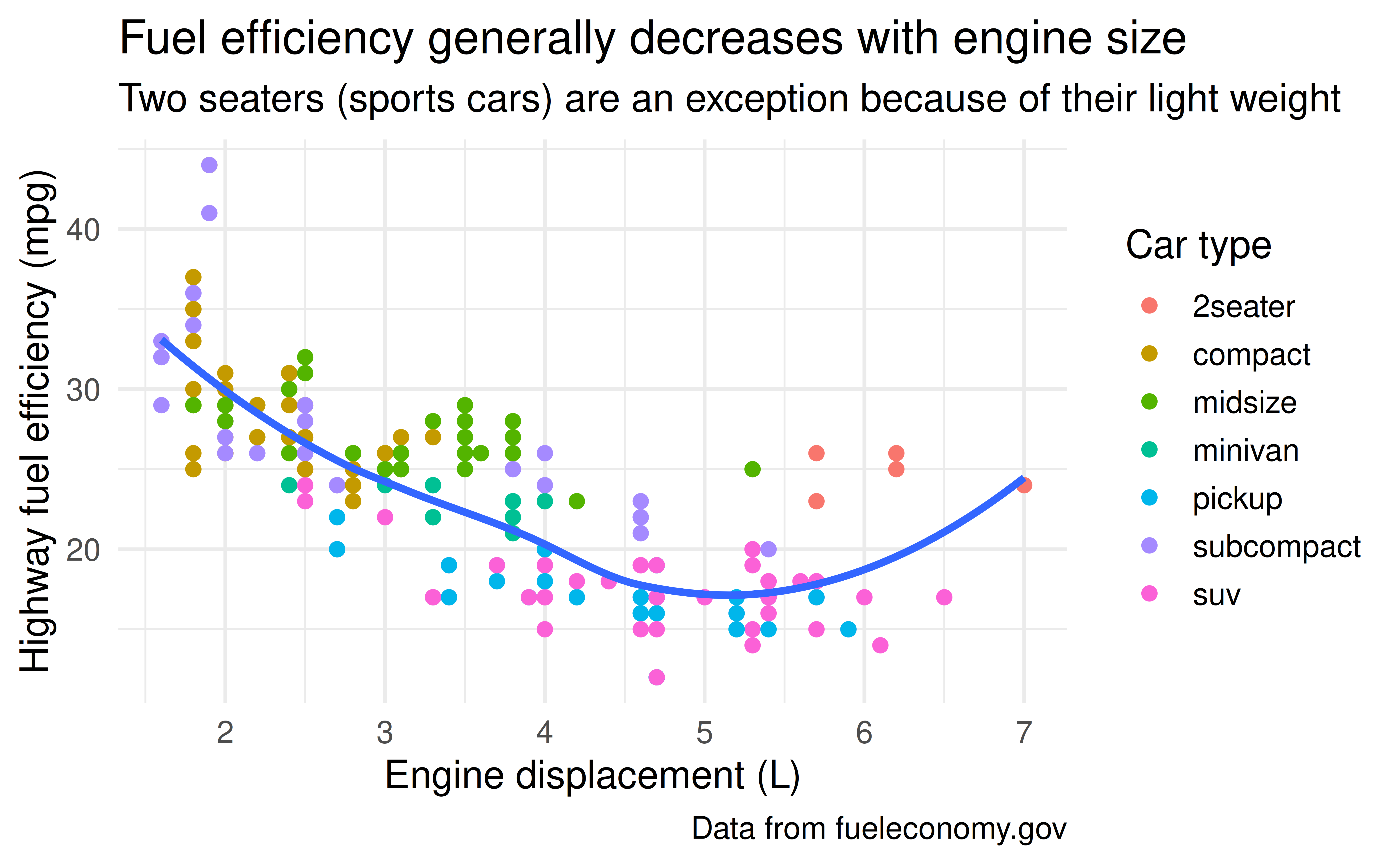
  • Use the labs() function to add labels to your plot.
  • You can add a title, subtitle, caption, tag, and new x and y axis labels.
ggplot(mpg, aes(x = displ, y = hwy)) +
  geom_point(aes(color = class)) +
  geom_smooth(se = FALSE) +
  labs(
    title = "Fuel efficiency generally decreases with engine size",
    subtitle = "Two seaters (sports cars) are an exception because of their light weight",
    caption = "Data from fueleconomy.gov",
    x = "Engine displacement (L)",
    y = "Highway fuel efficiency (mpg)",
    color = "Car type"
  )

Annotations

Adding Text

  • You can use geom_text() to add text to your plot.
  • It’s similar to other geoms, but has an label aesthetic.
  • ggrepel package for making text and labels that repel away from each other to avoid overlapping.

Practice

Let’s create a scatter plot of engine size vs. highway fuel efficiency, and label the best car in each class.

annotate()

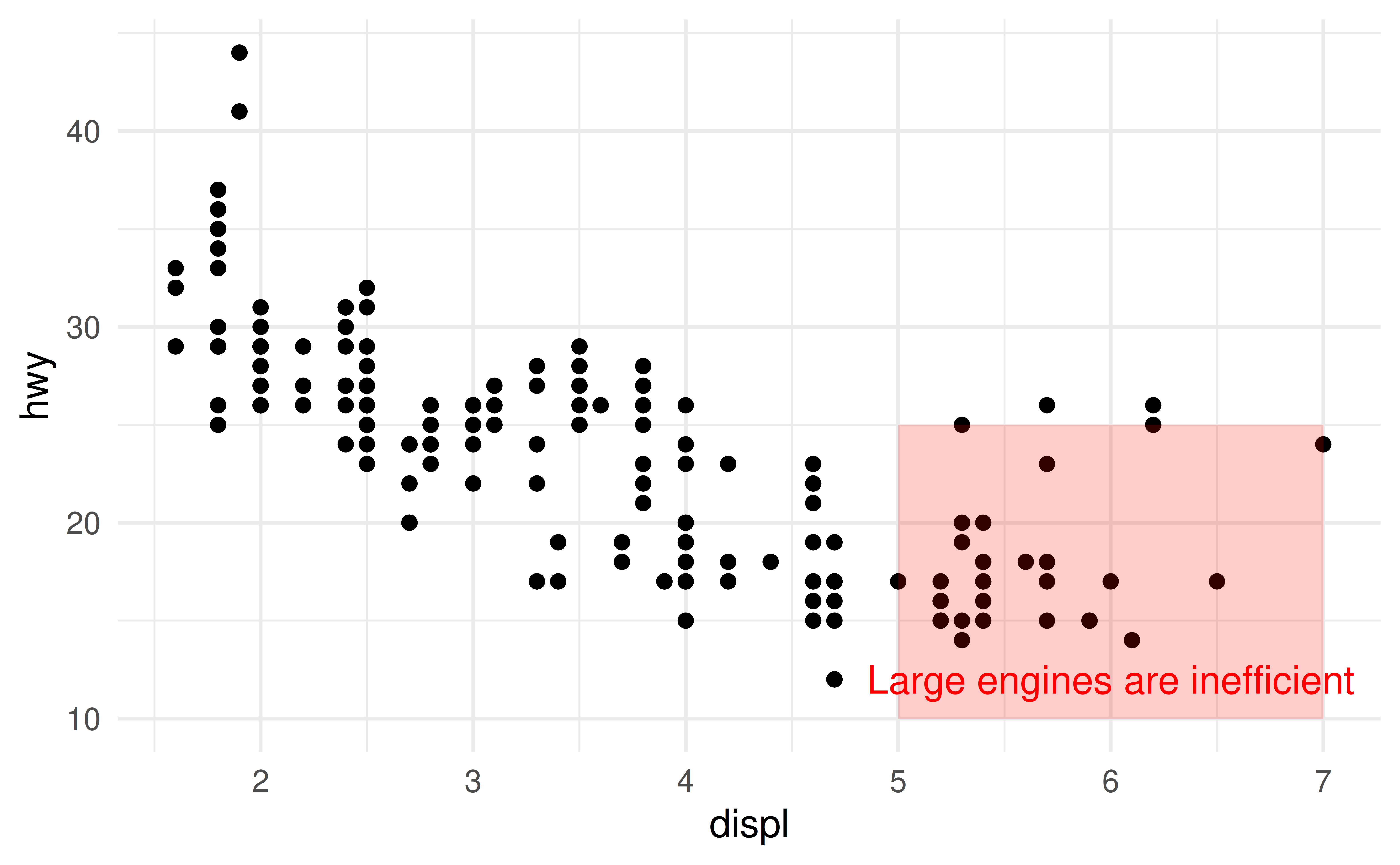
  • You can use annotate() to add a single annotation to a plot.
  • This is useful for adding a text label or a rectangle to highlight something.

Example

Code
ggplot(mpg, aes(x = displ, y = hwy)) +
  geom_point() +
  annotate(
    "rect", 
    xmin = 5, xmax = 7, ymin = 10, ymax = 25, 
    fill = "red", alpha = 0.2
  ) +
  annotate(
    "text", x = 6, y = 12, label = "Large engines are inefficient",
    color = "red", hjust = 0.5
  )

Scales

Axis Ticks

  • Scales control the mapping from data values to aesthetics.
  • You can customize scales to change axis ticks, legend keys, and more.
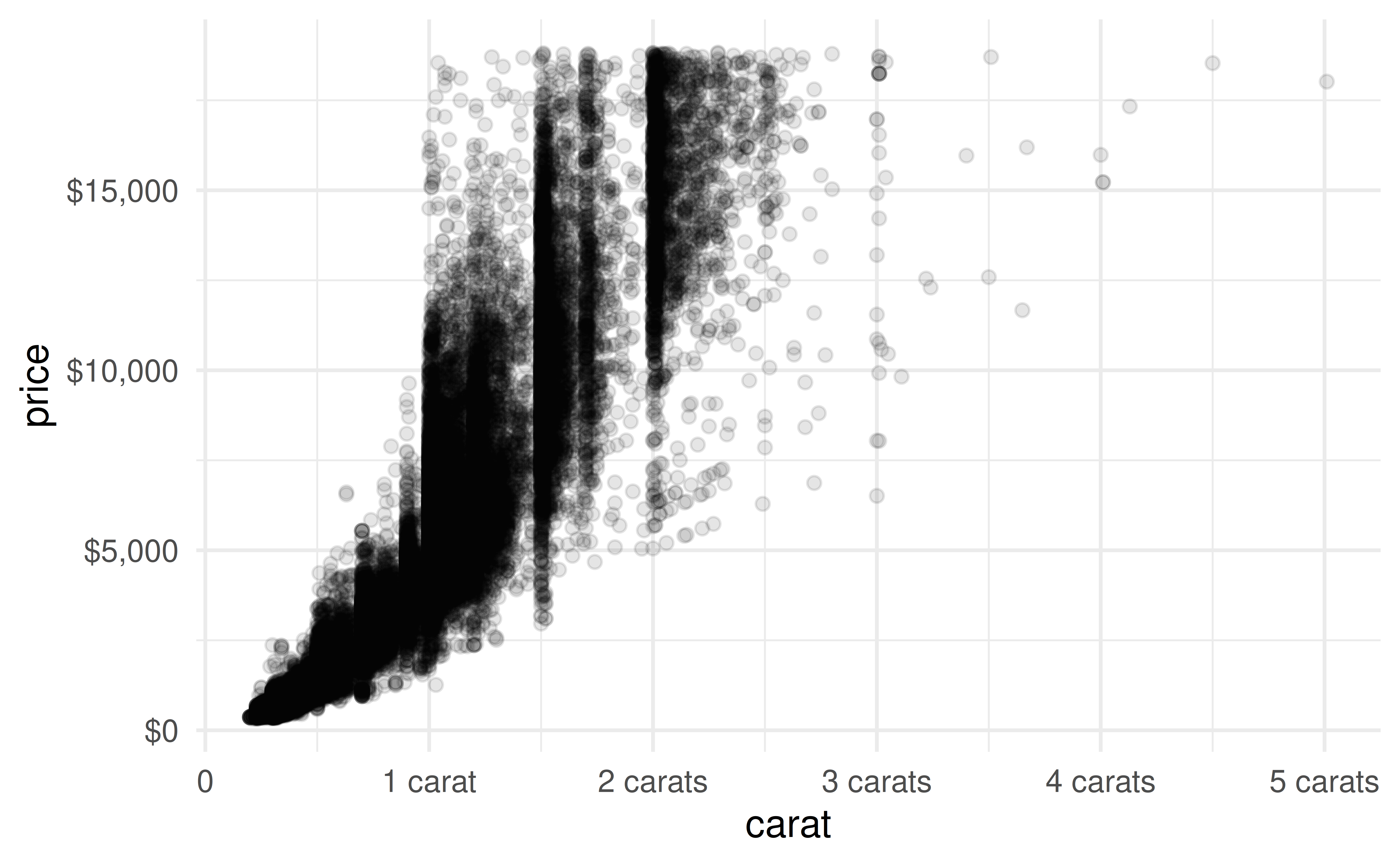
  • Use breaks and labels to customize the ticks on an axis.

Example: Ticks

Code
ggplot(diamonds, aes(x = carat, y = price)) +
  geom_point(alpha = 0.1) +
  scale_x_continuous(
    breaks = seq(0, 5, by = 1), 
    labels = c("0", "1 carat", "2 carats", "3 carats", "4 carats", "5 carats")
  ) +
  scale_y_continuous(labels = scales::dollar)

Legend Layout

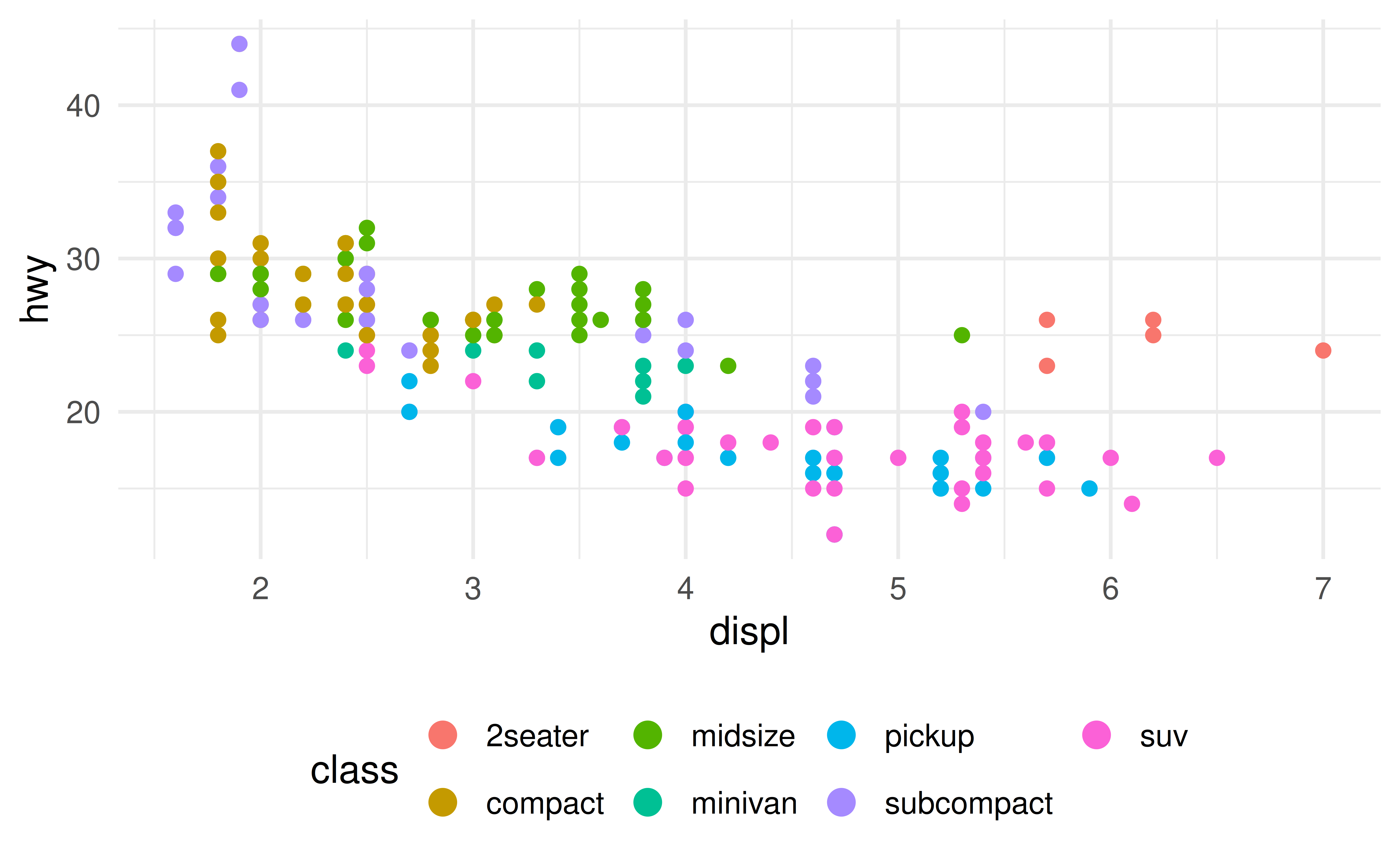
  • Use theme(legend.position = ...) to move the legend.
    • Values: "right", "left", "top", "bottom", "none".
  • Use guides() to control legend appearance, like the number of rows.

Example: Legend

Code
base <- ggplot(mpg, aes(x = displ, y = hwy)) +
  geom_point(aes(color = class))

base + 
  theme(legend.position = "bottom") +
  guides(color = guide_legend(nrow = 2, override.aes = list(size = 4)))

Color Scales

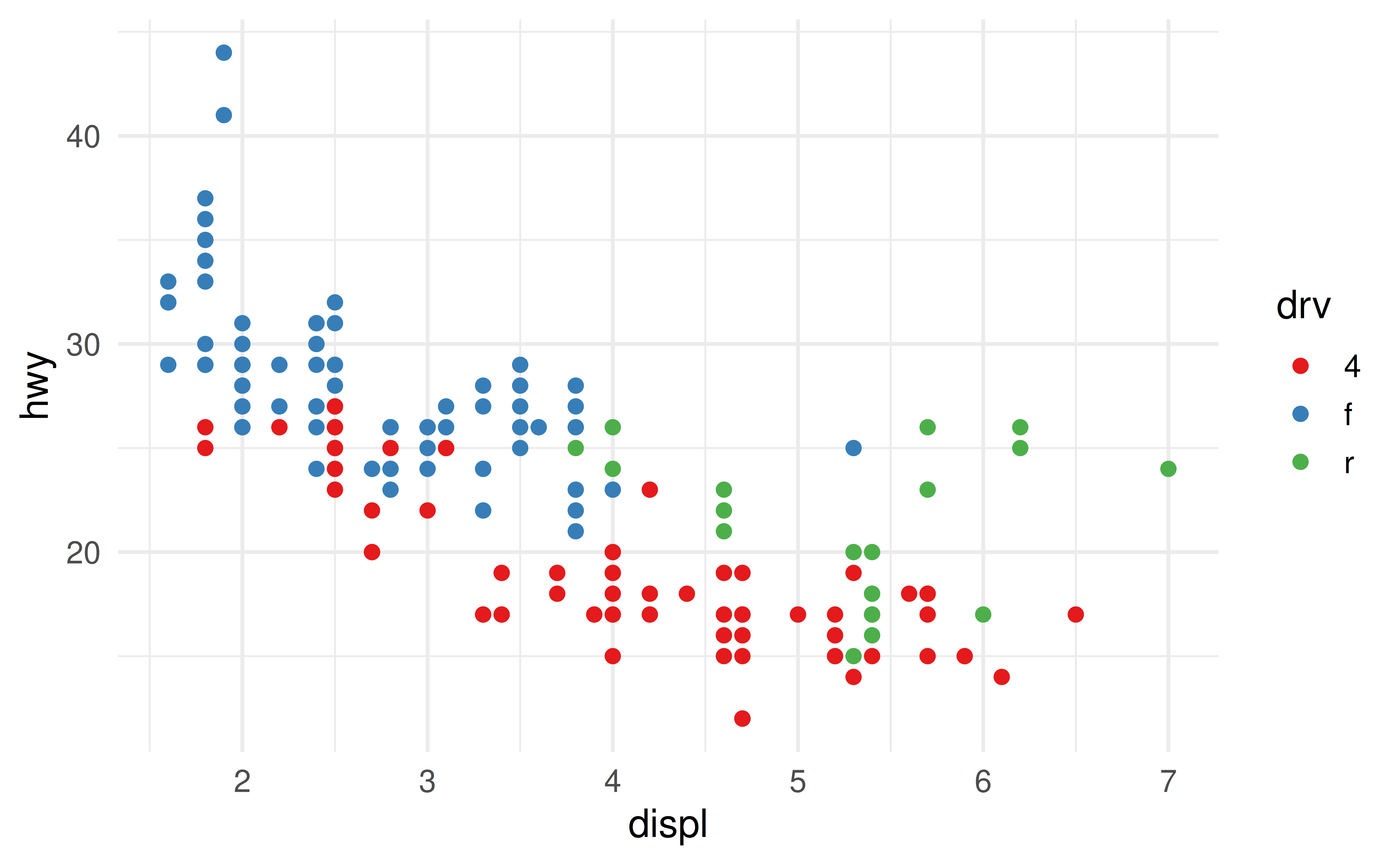
  • Use scale_color_*() functions to control color scales.
  • scale_color_brewer() uses hand-picked, colorblind-friendly palettes.
  • scale_color_viridis_c() is a continuous color scale that is perceptually uniform and colorblind friendly.

Example: Color Brewer

Code
ggplot(mpg, aes(x = displ, y = hwy)) +
  geom_point(aes(color = drv)) +
  scale_color_brewer(palette = "Set1")

Manual Color Scale

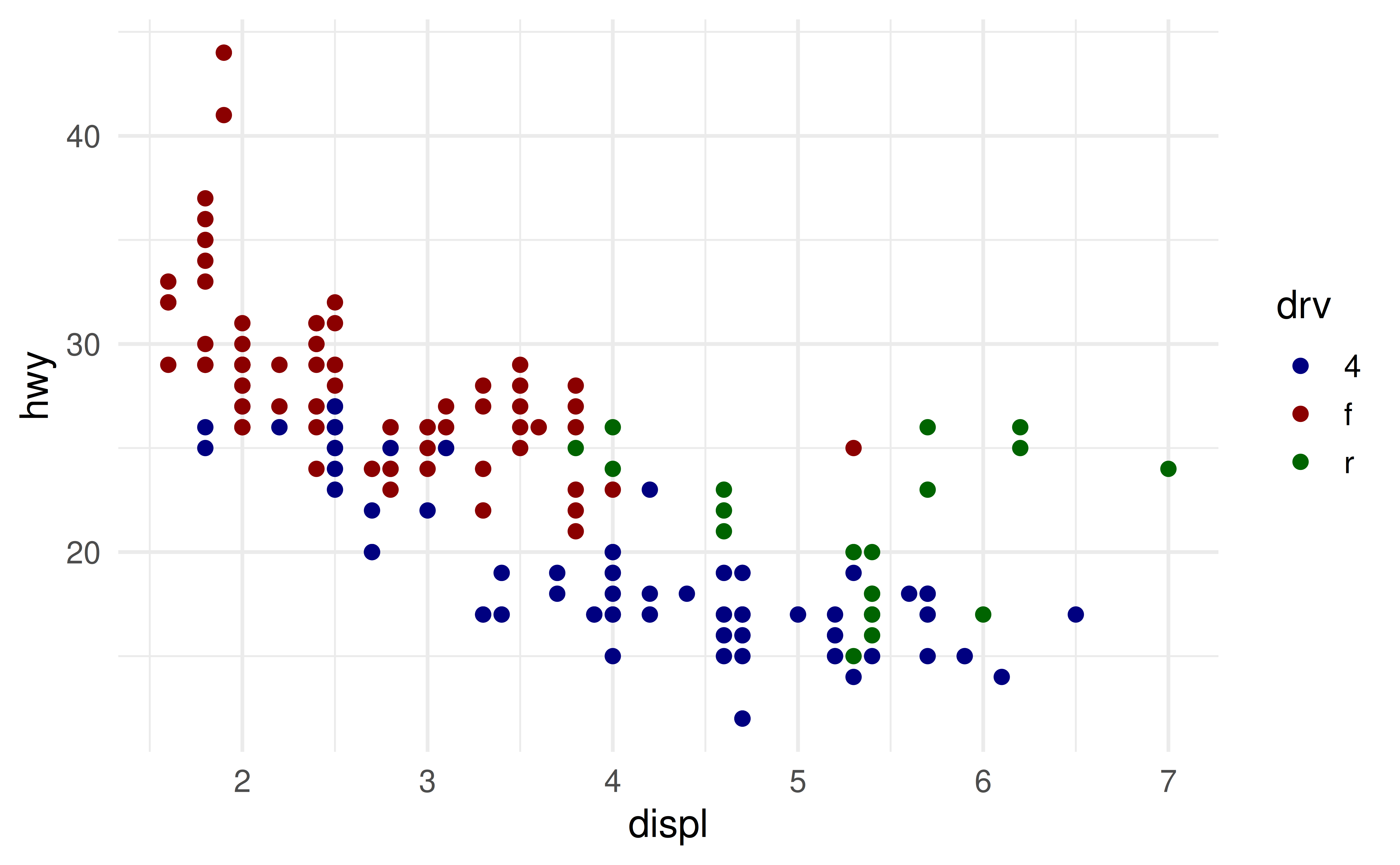
  • When you have a predefined mapping between values and colors, use scale_color_manual().
Code
ggplot(mpg, aes(x = displ, y = hwy, color = drv)) +
  geom_point() +
  scale_color_manual(values = c("4" = "navy", "f" = "darkred", "r" = "darkgreen"))

Axis Transformations

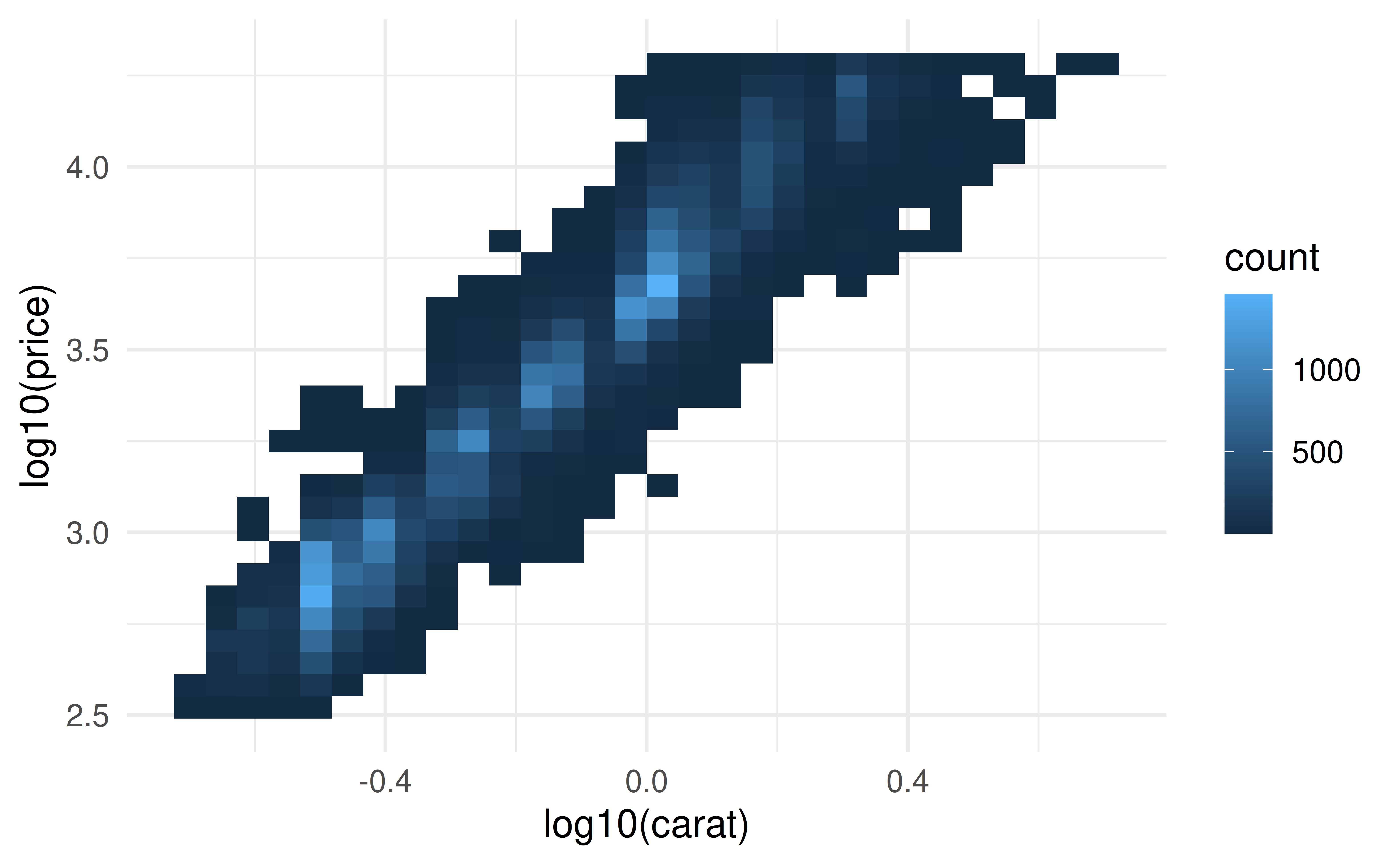
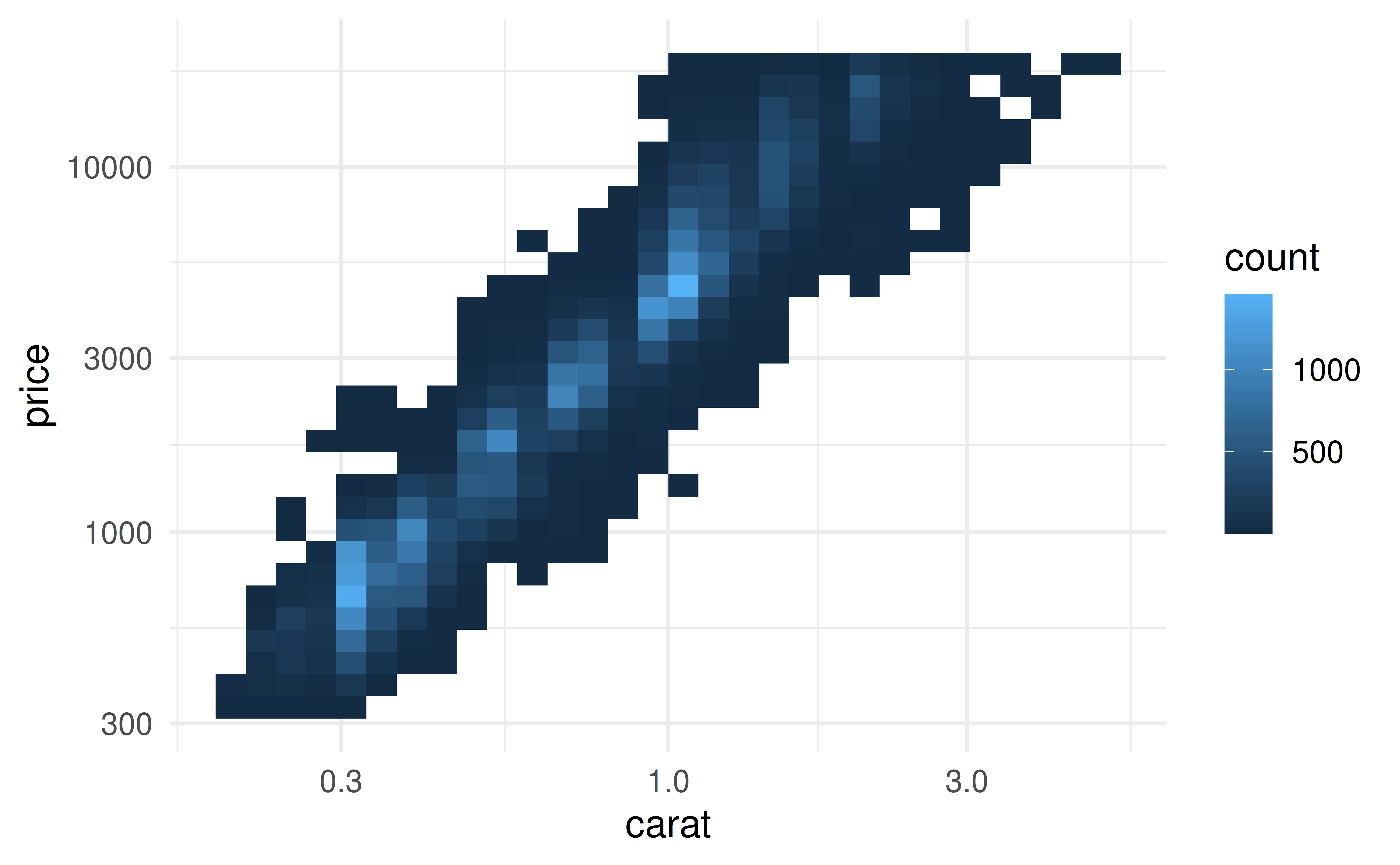
  • You can transform a variable inside the aesthetic mapping, e.g. aes(y = log10(price)).
  • Or, you can transform the scale, e.g. scale_y_log10(). This is usually better because the axis is labeled on the original data scale.

Example

Code
# Transformed in aesthetic
ggplot(diamonds, aes(x = log10(carat), y = log10(price))) +
  geom_bin2d()

Code
ggplot(diamonds, aes(x = carat, y = price)) +
  geom_bin2d() +
  scale_x_log10() +
  scale_y_log10()

coord_cartesian()

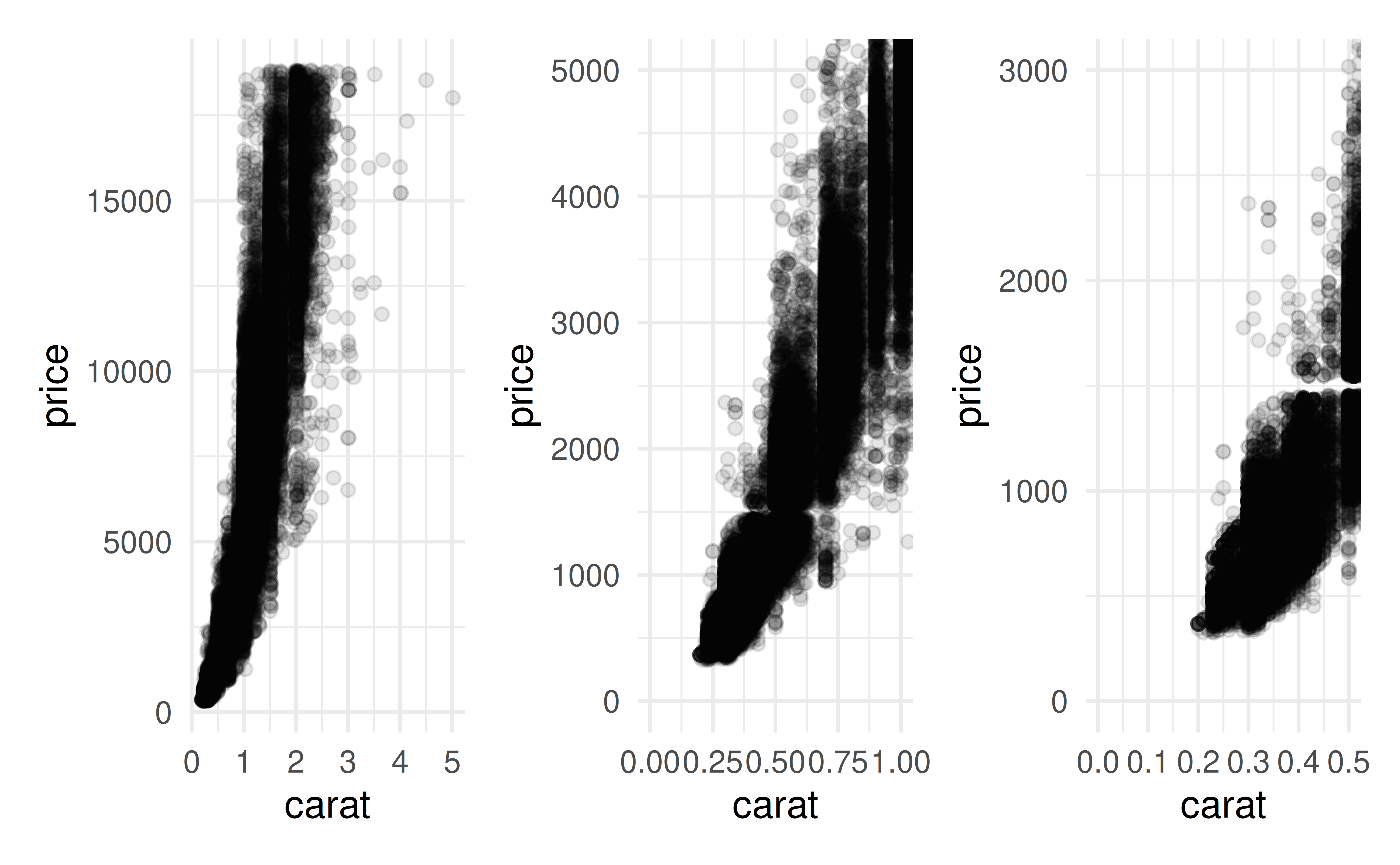
  • To zoom in on a part of the plot, use coord_cartesian().
  • It’s better than xlim() or ylim() because it doesn’t throw away data… this matters if you’re using statistics or fitting curves

Example

Code
p1 <- ggplot(diamonds, aes(x = carat, y = price)) +
  geom_point(alpha = 0.1)

p2 <- ggplot(diamonds, aes(x = carat, y = price)) +
  geom_point(alpha = 0.1) +
  coord_cartesian(xlim = c(0, 1), ylim = c(0, 5000))

p3 <- ggplot(diamonds, aes(x = carat, y = price)) +
  geom_point(alpha = 0.1) +
  coord_cartesian(xlim = c(0, 0.5), ylim = c(0, 3000))

p1 + p2 + p3
Themes

Built-in Themes

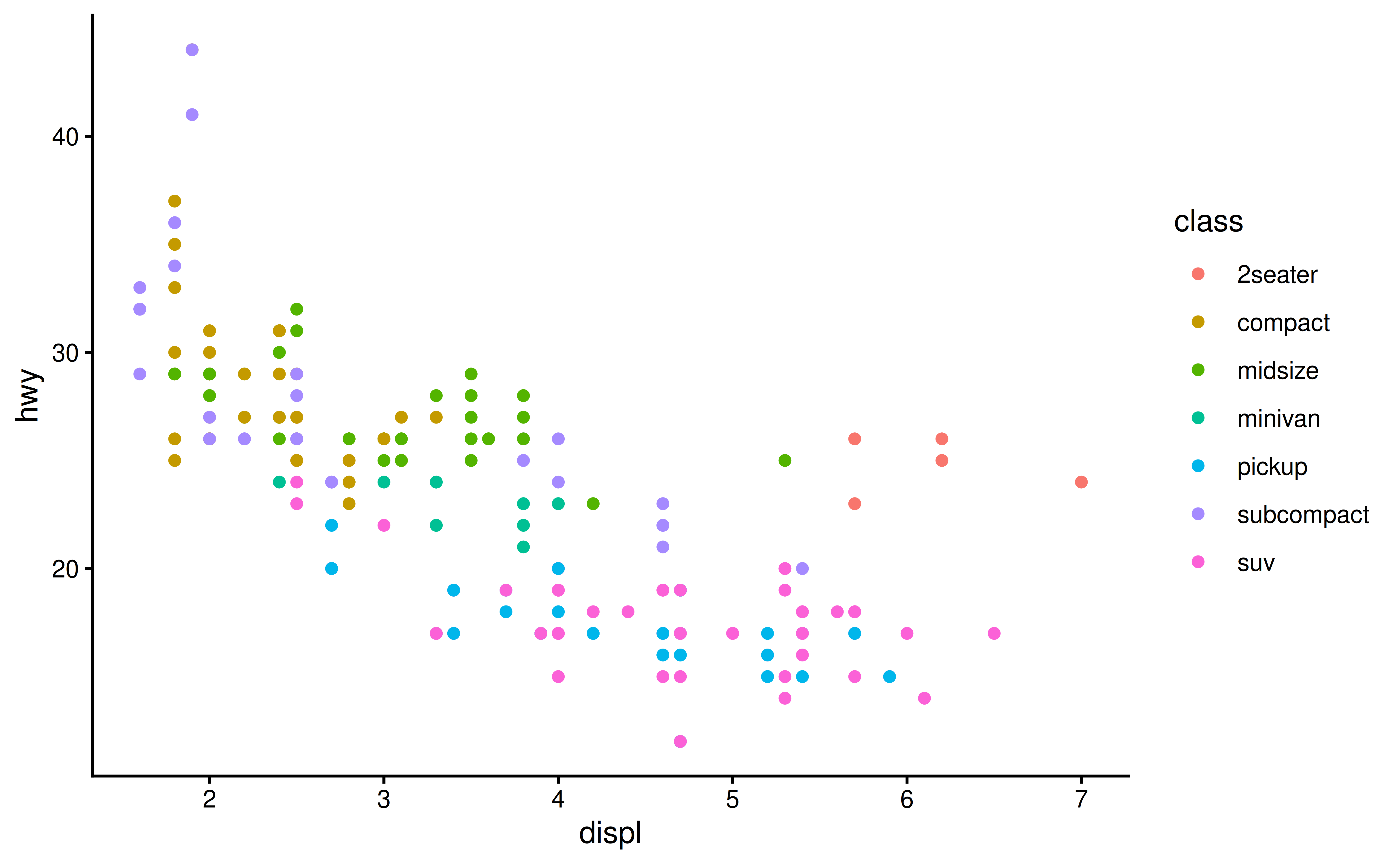
  • ggplot2 comes with several built-in themes: theme_gray(), theme_bw(), theme_minimal(), theme_classic(), theme_light(), and theme_dark().
  • You can set a theme globally with theme_set().

Example

Code
ggplot(mpg, aes(x = displ, y = hwy, color = class)) +
  geom_point() +
  theme_classic()

ggthemes

  • The ggthemes package provides a variety of addition complete themes.
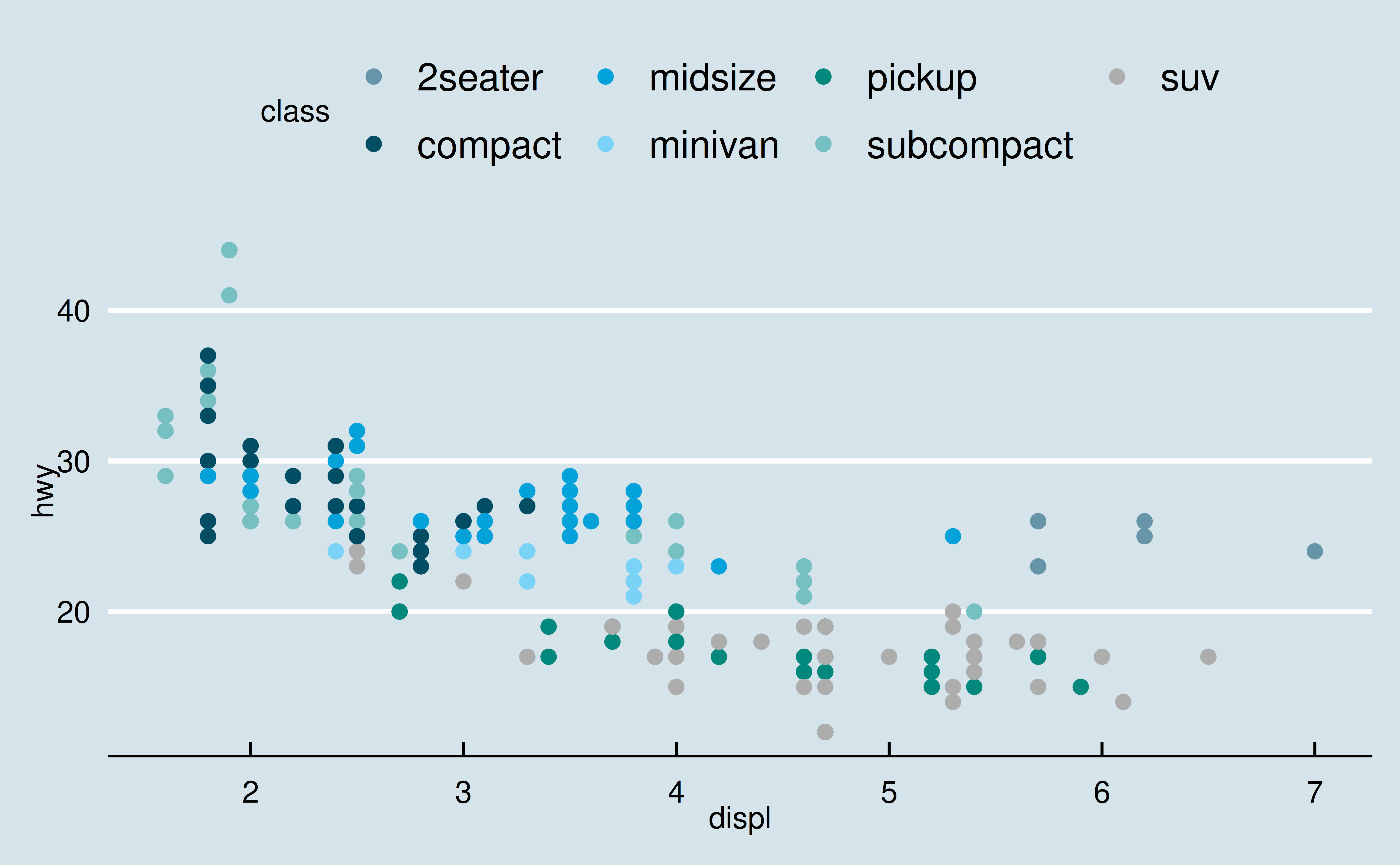
  • Try theme_economist(), theme_solarized(), theme_wsj().

Example

library(ggthemes)
ggplot(mpg, aes(x = displ, y = hwy, color = class)) +
  geom_point() +
  theme_economist() + 
  scale_color_economist()

theme()

  • Use theme() to customize non-data elements of your plot.
  • You can change fonts, backgrounds, gridlines, legend position, and more.

Saving Plots

ggsave()

  • Use ggsave() to save your plots.
  • It saves the last plot by default.
  • You can specify the width, height, and dpi.
p <- ggplot(mpg, aes(x = displ, y = hwy)) + geom_point()
ggsave("my-plot.png", plot = p, width = 6, height = 4, dpi = 300)

Summary

Communication Best Practices

  • Label your plots clearly and concisely.
  • Use annotations to highlight important features.
  • Choose appropriate scales and colors.
  • Use themes to create a consistent and polished look.
  • Save your plots in a suitable format and resolution.
  • Your goal is to make your plots easy to understand for your audience.

Do Next

  1. Read Chapter 11: Communication from r4ds.
  2. Open the Recitation Gem and say “Provide me practice problems for Chapter 11” or work through some of the exercises in the text.
  3. Move on the Lecture 10!